REAL FIELD SERVE SCREEN RECORDINGS
See the work
move through Field Serve.
These clips were recorded while operating the actual Field Serve preview. Watch real CRM, engineer and customer screens respond to real clicks.
2 recordings · Local preview workspace · Fictional sample records
EXPLORE THE WORKFLOWS
SCREEN RECORDING
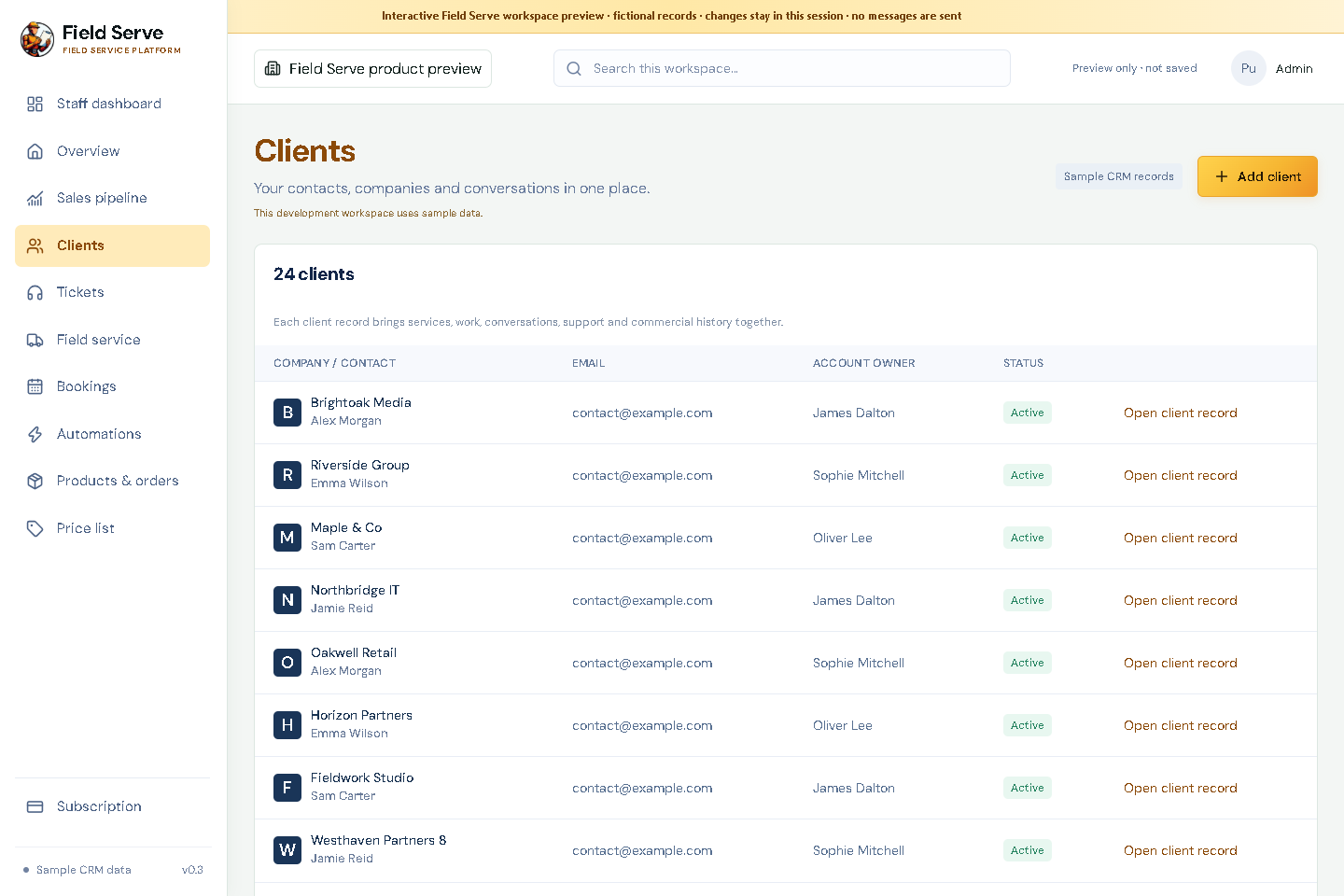
A client record, end to end
Follow a client profile through services and assets, linked opportunities, email history, support tickets, bookings and field work.
Read the walkthrough transcript
Open a fictional client record. Review managed services and digital assets, then scroll through its linked support, bookings and field work history.
SCREEN RECORDING
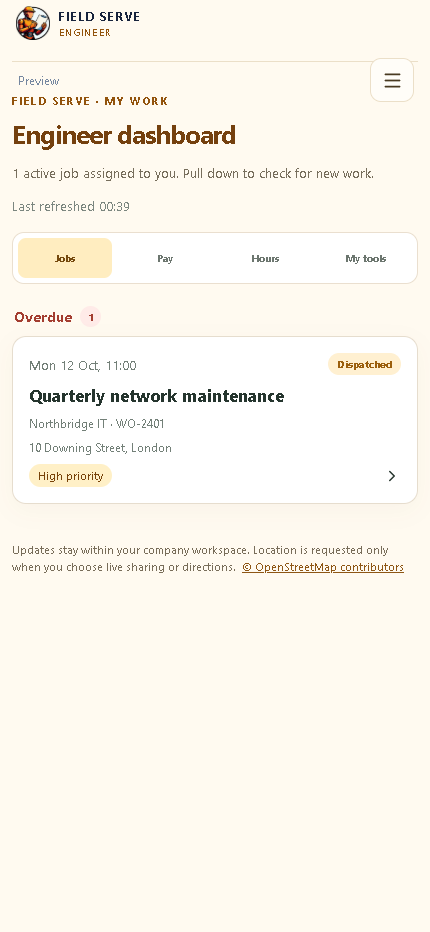
Engineer job card in action
Use the responsive engineer app to review assigned work, start the timer and update job status.
Read the walkthrough transcript
Open an assigned sample work order. Start and stop its timer, update the job status, and review the customer update context. These changes stay in the local preview.
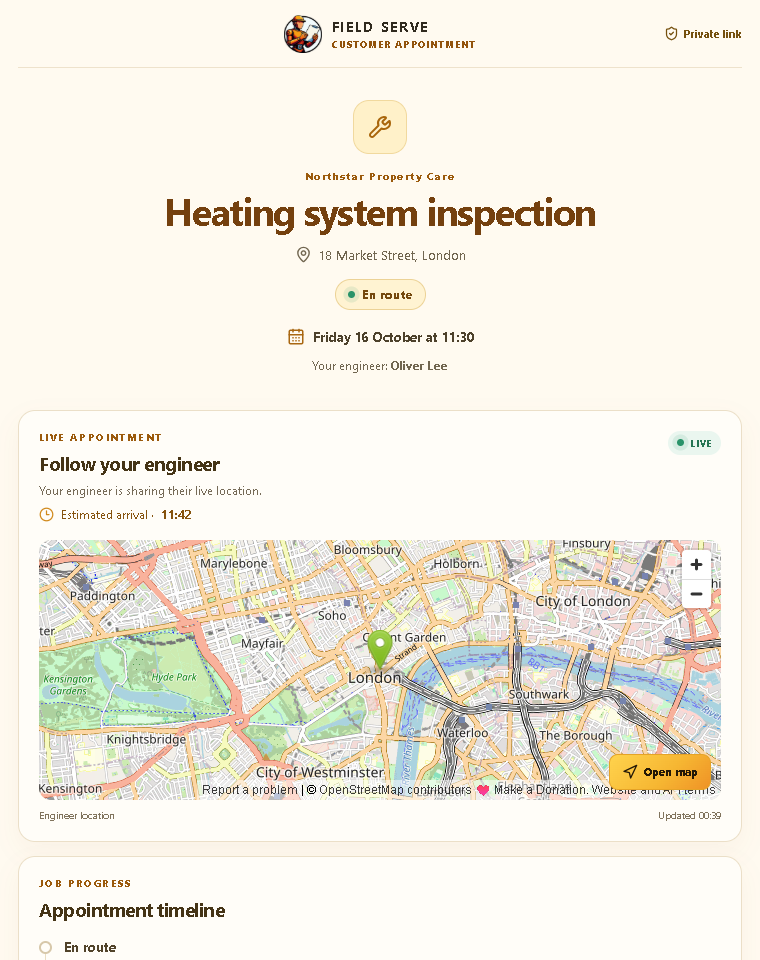
These are genuine screen recordings of the Field Serve local preview, captured with fictional sample records. The engineer timer and status changes stay in this preview; No production customer data, live location or external mailbox is used. Features shown can depend on workspace setup and plan.
READY TO SEE YOUR WORKFLOW?
Explore Field Serve with your team’s needs in mind.
Request a 30-day full-platform trial. Field Serve provisions each company workspace before access is granted.
HOW TO USE THESE RECORDINGS
Watch the sequence, then try the live sample workspace.
The videos are screen recordings of the Field Serve preview using fictional sample records. They show interface behaviour, not a promise that every function is enabled in every customer plan or that a third-party connection is already configured.
Client record walkthrough
Follow a sample company profile through its contacts, managed service details, opportunity, email context and linked work. Notice how the record is intended to preserve history so the next person has enough information to continue the conversation.
When evaluating this workflow, ask which fields your business needs, who is responsible for keeping asset details current and which information should not be stored in a CRM.
Engineer job walkthrough
Open an assigned work order, inspect the job card, use the timer controls and update the status. The demo uses sample data and does not represent a live engineer’s location or a customer’s active booking.
When evaluating field work, test the app on your actual devices, agree time-entry corrections and confirm how status updates should be reflected to the office and customer.
Interactive product preview
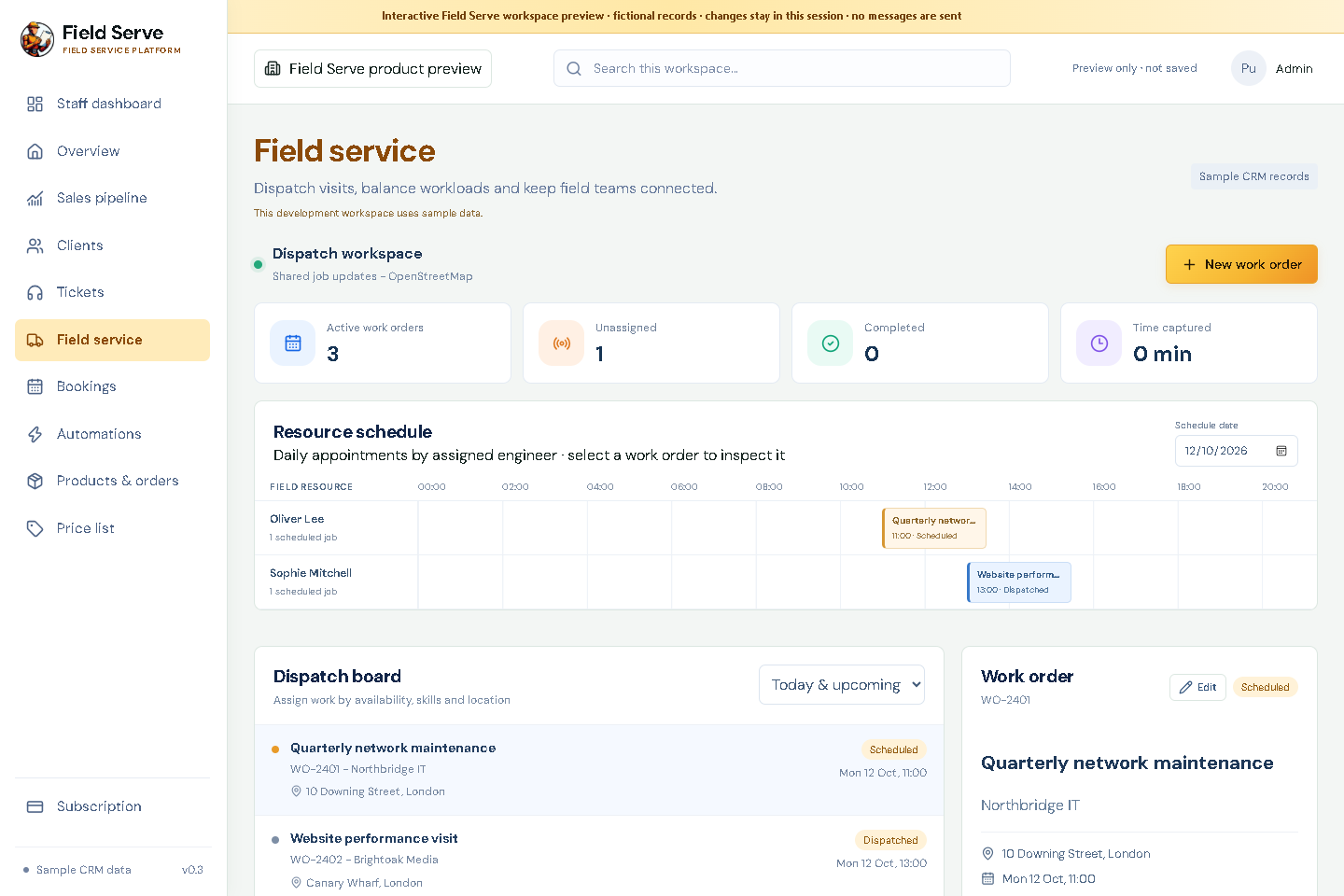
Open the real CRM + Field Service workspace on the app subdomain. Navigate the dashboard, clients, sales pipeline, Field Service, bookings, automations and price list using fictional sample records.
Changes stay in the preview session. The preview does not save into a customer company workspace or send emails.
Before making a purchasing decision
Use the 30-day trial to validate your own process with your team after onboarding. Confirm plan scope, company isolation, staff role permissions, data handling, third-party integrations and the support model in writing.